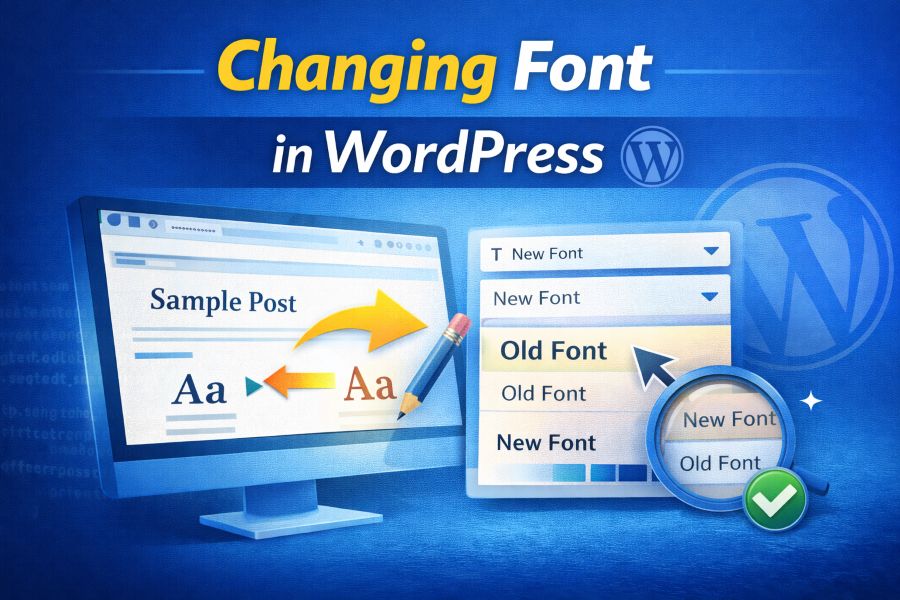
Fonts play a critical role in how users experience a website. Typography affects readability, branding, accessibility, and overall professionalism. Many site owners want to refresh their design or align typography with brand guidelines, but they are unsure how to do it safely. This is where changing font in WordPress becomes an important skill.
WordPress themes handle fonts differently. Some themes offer built-in font controls through the Customizer, while others rely on page builders, CSS, or external plugins. Because of this variation, beginners often assume changing fonts requires advanced coding knowledge. In reality, WordPress provides multiple beginner-friendly and advanced options.
Why Changing Font in WordPress Is Important
Typography influences how users interact with your website. Fonts affect readability, content flow, and visual hierarchy. When text is hard to read, visitors leave quickly. This makes changing font in WordPress more than a cosmetic adjustment.
Brand identity is another reason fonts matter. Fonts communicate personality. A corporate website needs clean, professional typography, while a creative portfolio may use expressive fonts. Matching fonts with brand tone improves trust and recognition.
Accessibility also depends on typography. Font size, spacing, and weight help users with visual impairments read content easily. Many accessibility guidelines focus heavily on font clarity.
Performance is also connected to font choice. Heavy font files slow down page loading. Choosing optimized fonts improves speed and SEO rankings.
Finally, modern WordPress themes are designed for flexibility. They expect users to customize fonts safely through supported tools. Understanding why fonts matter helps you choose the right method instead of risking unstable changes.
Where Fonts Are Controlled When Changing Font in WordPress
Advanced methods allow deeper flexibility when changing fonts in WordPress.
WordPress Customizer Font Settings
Many WordPress themes include built-in typography options inside the Customizer, accessible through Appearance → Customize. These settings allow you to adjust body text and headings safely with live previews.
Theme Options Panels
Premium themes often provide a separate theme options panel in the dashboard. These panels offer advanced font controls, including font families, sizes, and spacing beyond the Customizer.
Page Builders and Font Controls
Page builders such as Elementor and Gutenberg manage fonts independently from the theme. They allow font customization at the section, block, or global level.
Custom CSS and Stylesheets
When theme options are limited, custom CSS offers precise font control. This method is useful for targeting specific elements.
Child Themes and Advanced Typography
Child themes allow deeper font customization while ensuring changes remain safe during theme updates.
Methods for Changing Font in WordPress
Fonts in WordPress can be changed using built-in settings, plugins, CSS, or page builders.
- Using the WordPress Customizer
The Customizer offers a safe and beginner-friendly way to change fonts with live previews and update-safe settings stored in the database. - Installing Typography Plugins
Typography plugins allow you to select and apply fonts easily without editing theme files or writing custom code. If you need inspiration for different font styles, Fontly offers a font generator tool to explore unique styles and enhance your website’s appearance. - Using Page Builder Font Settings
Page builders like Elementor and Gutenberg provide font controls at the block or section level, overriding theme typography when needed. - Applying Custom CSS Safely
Custom CSS gives precise font control for specific elements when built-in options are limited. - Editing Child Theme Stylesheets
Child themes protect font changes by keeping custom typography separate from the parent theme. - Using Global Typography Systems
Global typography settings ensure consistent font usage across the entire website from a single control panel.
Changing Font in WordPress Using the Customizer
The WordPress Customizer is the safest and most beginner-friendly method for changing font in WordPress. It allows live previews, undo options, and update-safe typography changes stored in the database rather than theme files.
Most modern themes provide font controls for body text, headings, menus, and buttons. These settings are typically located under Appearance → Customize → Typography. Adjustments are visible instantly and only go live after publishing.
Some themes also support Google Fonts integration directly inside the Customizer. This allows you to choose from hundreds of fonts without installing plugins. Font size, line height, and letter spacing may also be adjustable.
Customizer-based font changes remain intact during theme updates, making them ideal for non-technical users. However, not all themes expose full typography controls, which is when advanced methods become necessary.
Advanced Ways of Changing Font in WordPress
These advanced techniques help you change WordPress fonts safely beyond basic settings.
Changing Font in WordPress Using Plugins
Typography plugins make font customization simple and accessible. They allow you to select, preview, and apply fonts without writing any code, making them ideal for beginners and non-technical users.
Changing Font in WordPress Using Custom CSS
Custom CSS provides precise control over font families, sizes, spacing, and weights. This method is useful when theme or plugin options are limited and targeted styling is required.
Changing Font in WordPress With Child Themes
Using a child theme ensures typography changes remain intact during parent theme updates. It is the preferred method for long-term projects that require stable customization.
Changing Font in WordPress With Page Builders
Page builders like Elementor and Gutenberg override theme fonts at the layout or block level. This approach offers design flexibility while keeping the core theme structure untouched.
Common Mistakes When Changing Font in WordPress
- Editing Parent Theme Files Directly
Directly modifying parent theme files causes typography changes to be overwritten during theme updates. - Using Too Many Font Plugins
Installing multiple font-related plugins can create conflicts, slow down performance, and complicate font management. - Ignoring Mobile Font Readability
Fonts that look good on desktop may become unreadable on mobile devices if size and spacing are not adjusted properly. - Loading Too Many Font Families
Excessive font families increase page load times and reduce overall site performance. - Breaking Font Hierarchy
Inconsistent font usage across headings and body text harms visual structure and readability. - Forgetting Update Safety
Applying font changes without update-safe methods can result in lost customizations after theme updates.
Conclusion
Mastering changing font in WordPress helps refine visual identity, enhance readability, and create a better user experience while keeping your website stable. Choosing the proper approach depends on your theme structure, technical comfort, and long-term customization strategy.
FAQs
Can I change WordPress fonts without coding?
Yes, most WordPress themes and typography plugins allow you to change fonts easily without writing or editing any code.
Will font changes disappear after updates?
No, font changes made through the Customizer, plugins, or child themes remain safe and unaffected by theme updates.
Do font plugins slow down WordPress?
Only poorly optimized font plugins impact performance, while well-coded plugins have minimal effect on site speed.
Can I use Google Fonts in WordPress?
Yes, many WordPress themes, page builders, and plugins support Google Fonts integration by default.
Is CSS required for all font changes?
No, CSS is only necessary when built-in theme or plugin options do not provide sufficient font customization control.