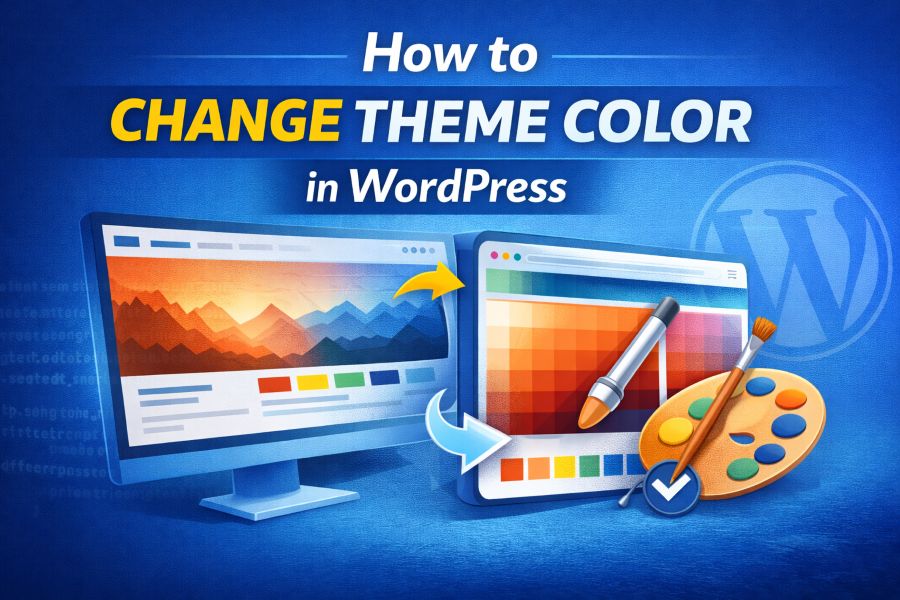
Changing the color scheme of a WordPress website is one of the most common customization requests, yet it often confuses beginners. Many users want to refresh their brand, improve readability, or match a company color palette, but they are unsure where to start. Learning how to change theme color in WordPress correctly helps avoid broken layouts, lost customizations, and update issues.
WordPress themes handle colors in different ways. Some themes provide built-in color controls through the Customizer, while others rely on CSS files, theme options panels, or page builders. Because of this variation, users often assume that changing colors requires coding knowledge. In reality, WordPress offers multiple safe and beginner-friendly methods.
Why Changing Theme Color in WordPress Matters
Changing colors in WordPress is not just about aesthetics. Colors affect branding, readability, user trust, and conversion rates. When visitors land on a website, the color scheme shapes their first impression within seconds. This is why learning how to change theme color in WordPress is essential for site owners.
A poorly chosen color palette can reduce readability and make content hard to consume. Text that blends into the background or buttons that do not stand out often lead to higher bounce rates. Adjusting colors properly improves clarity and engagement.
Brand consistency is another major reason. Businesses often rebrand or update their visual identity. If your website colors do not match your logo or marketing materials, it creates confusion. WordPress allows color updates without rebuilding the entire site.
Colors also influence accessibility. High contrast helps users with visual impairments navigate content easily. Many WordPress themes now support accessibility standards, but only if colors are configured correctly.
Where WordPress Theme Colors Are Controlled
Different WordPress themes manage colors in different places, including the Customizer, theme panels, and page builders.
Using the WordPress Customizer to Change Theme Color
Many WordPress themes include built-in color settings inside the Customizer. You can access these options through Appearance → Customize, where changes can be previewed in real time before publishing.
Theme Options Panels Inside the Dashboard
Premium themes often provide a separate options panel in the WordPress dashboard. These panels include advanced color controls for headers, footers, buttons, and backgrounds beyond the Customizer.
Page Builders and Color Controls
Page builders such as Elementor and the Gutenberg editor manage colors independently from the theme. They allow you to apply colors at the section, block, or global level.
Custom CSS and Stylesheets
When theme settings are limited, custom CSS can be used to target specific elements. This method offers precise control but requires basic CSS knowledge.
Child Themes and Advanced Color Editing
Child themes allow deeper color customization by modifying stylesheets safely without affecting future theme updates.
Methods to Change Theme Color in WordPress
There are several easy and advanced ways to change theme colors in WordPress without breaking your design.
- Using the WordPress Customizer
The Customizer provides a safe, beginner-friendly way to change theme colors with live previews and update-safe storage. - Applying Custom CSS Safely
Custom CSS allows precise color control when theme options are limited, without modifying core theme files. - Using Page Builder Color Settings
Page builders like Elementor and Gutenberg manage colors at the section or block level, overriding theme styles. - Installing Color Customization Plugins
Color-focused plugins offer simple interfaces for adjusting colors without requiring coding skills. - Editing Child Theme Stylesheets
Child themes allow advanced color customization while preserving changes during theme updates. - Using Global Color Systems
Global color settings ensure consistent branding across pages by managing color palettes from one central location.
How to Change Theme Color in WordPress Using the Customizer
The WordPress Customizer is the safest and most beginner-friendly way to change theme colors in WordPress. It provides real-time previews, simple controls, and update-safe changes that are stored in the database rather than theme files. This allows users to experiment with colors confidently without risking site breakage.
Most modern WordPress themes include built-in color settings for backgrounds, text, links, buttons, and headers. These options are usually found under Appearance → Customize → Colors or Typography. Any color changes made here appear instantly in the preview and only go live after clicking publish.
Many themes also support accessibility features within the Customizer, such as contrast awareness, helping ensure readability across devices. Because Customizer settings remain intact during theme updates, they are ideal for non-technical users. However, some themes limit these options to accent colors only, requiring alternative customization methods.
Advanced Ways to Change Theme Color in WordPress
These advanced techniques help you change WordPress theme colors safely beyond standard settings.
How to Change Theme Color in WordPress Using Custom CSS
Custom CSS provides precise control over theme colors when built-in options are limited. It allows you to target specific elements without modifying core theme files, keeping changes update-safe.
How to Change Theme Color in WordPress With a Child Theme
Using a child theme is ideal for long-term projects. Color changes added to the child theme stylesheet remain intact during parent theme updates, ensuring consistent design.
How to Change Theme Color in WordPress With Plugins
Color customization plugins offer user-friendly interfaces for adjusting colors without coding. They are useful for beginners who want quick results with minimal risk. For example, if you’re looking for tools to enhance your website’s design process, you might also find the Scientific Calculator Online helpful for adding mathematical tools to your site.
How to Change Theme Color in WordPress With Page Builders
Page builders like Elementor and Gutenberg override theme colors at the layout or block level, giving you design flexibility while maintaining overall theme structure.
Common Mistakes When Changing Theme Colors
- Editing Parent Theme Files Directly
Making color changes inside parent theme files causes those edits to be overwritten during theme updates. - Using Too Many Color Plugins
Installing multiple color-related plugins can create conflicts, slow down the site, and produce inconsistent styling. - Ignoring Mobile Color Contrast
Colors that look fine on desktop may reduce readability on mobile devices if contrast is not tested properly. - Overwriting Global Styles Unintentionally
Changing global color settings without understanding their impact can affect multiple pages and layouts unexpectedly. - Breaking Brand Consistency
Using too many different colors weakens branding and makes the website look unprofessional. - Forgetting Update Safety
Applying color changes without using update-safe methods can result in lost customizations after theme updates.
Conclusion
Learning how to change theme color in WordPress allows you to refine branding, improve usability, and maintain visual consistency without risking site stability. By using update-safe methods, you can adjust colors confidently while keeping your design intact across future theme updates.
FAQs
Can I change WordPress theme colors without coding?
Yes, WordPress themes allow color changes through the Customizer or dedicated plugins, making it easy to customize colors without writing any code.
Will color changes disappear after updates?
No, color changes made using the Customizer or a child theme remain intact and are not affected by theme updates.
Do plugins slow down color customization?
Only poorly optimized plugins affect performance. Well-coded color customization plugins have minimal impact on website speed.
Is CSS required for all color changes?
No, CSS is only required when built-in theme or plugin options do not provide enough color control.
Can I set different colors for mobile devices?
Yes, many modern themes and page builders support responsive color settings for mobile, tablet, and desktop views.